
Nikon Coolscan slide scanning
Nikon Coolscan, Vuescan settings for slides
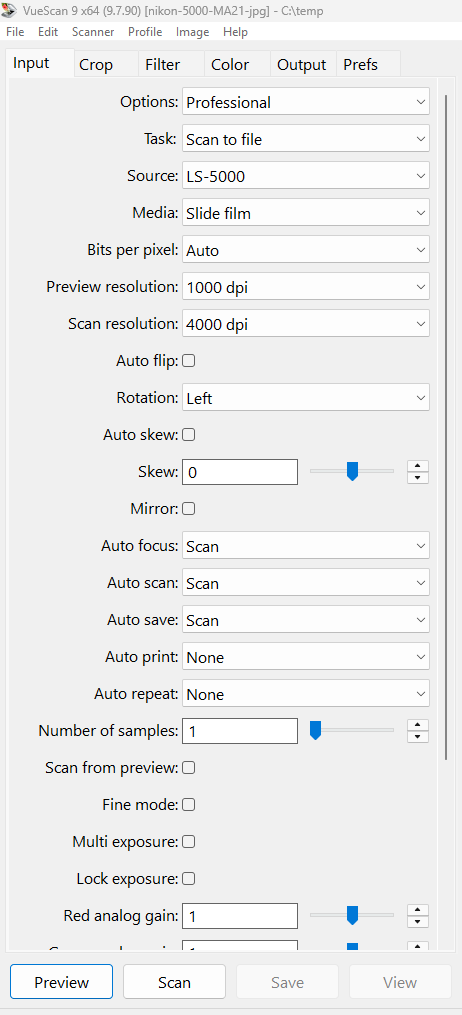
Suggested settings for scanning single slides to JPG with Nikon Super Coolscan 5000 and the MA-21 slide adapter. Similar settings can be used for Nikon Coolscan IV (LS-40), V (LS-50) and 4000. These settings are for use with Vuescan 9.7.90. Other versions have similar settings.
Input Tab
Auto Scan = “Scan”, means that the scanner starts automatically when inserting a slide.
Auto Focus = “Scan” (autofocus only on scan, recommended) or “always” (autofocus on preview and scan)
Crop Tab
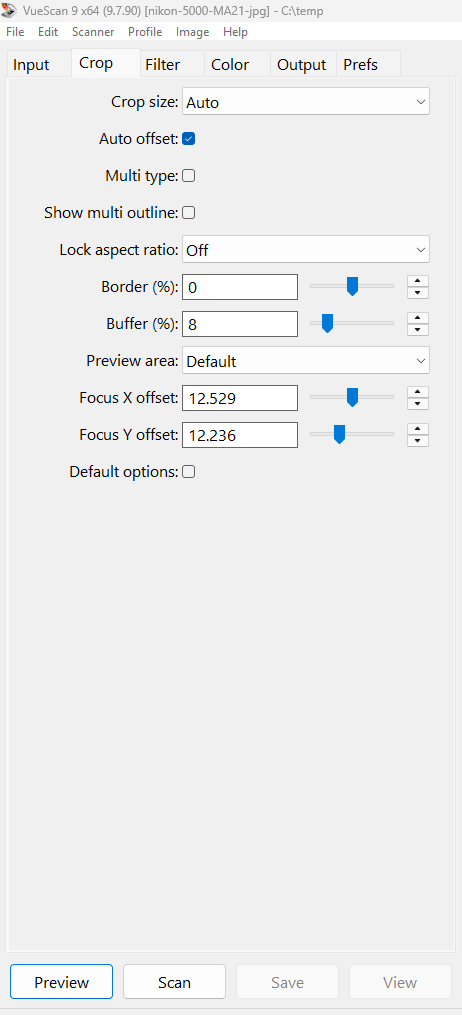
Crop size = “auto” works for most 24 x 36mm slides.
If you want the same crop every time you can choose “manual” Y = 23, X = 35, “auto offset” = on, “Aspect ratio” = manual.
For slides 24 x 24mm, 18 x 24mm and 28 x 28mm the best is to enter crop size and aspect ratio manually.
Filter Tab
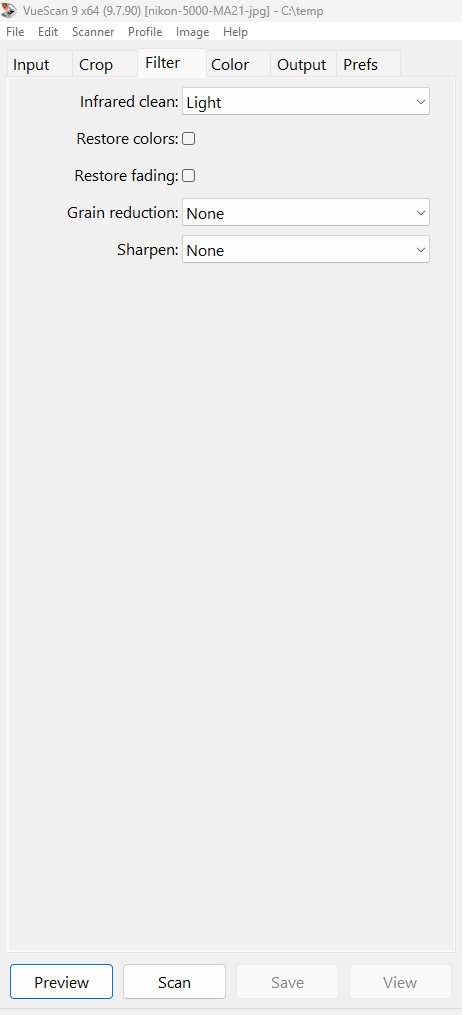
Infrared Clean = “Light”. In some Kodachrome slides you get better results with “Infrared Clean = off” ( greater contrast in the black parts ).
Restore fading: Try “Restore fading” = on if your pictures are color shifted. If your pictures have good colors keep it off. Restore fading must be used together with “Output”, “Color balance” = Neutral.
Sharpen: Choose “sharpen” = on if you prefer a little more sharpness, but it will look less natural.
Color Tab
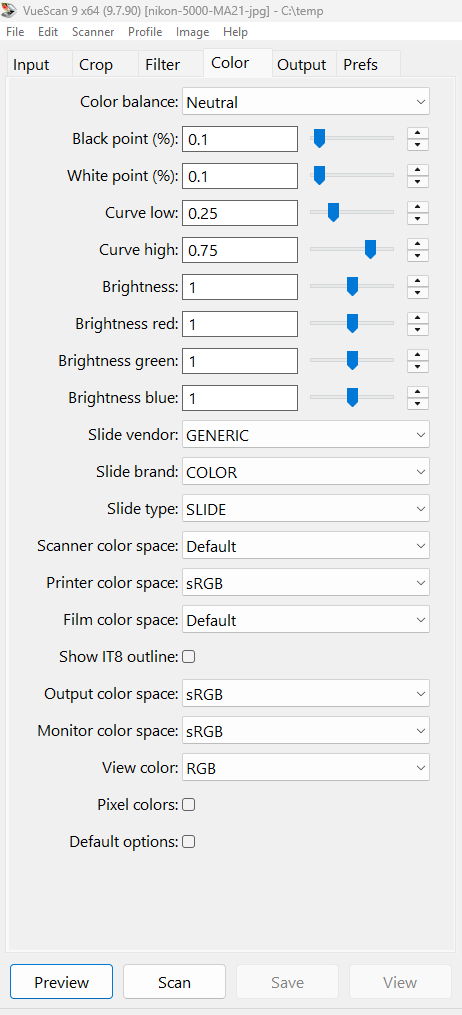
Color Balance : Choose “Neutral”. “Autolevels” will correct some color cast, but will also “correct” a red sunset.
Black Point: Default Value is 0, however this gives the picture a washed out look. Choose 0.1
White Point: The default Value is 1, meaning that 1% of the pixels is made pure white. However this removes a lot of detail in the light parts. Choose 0.1
Curve Low, Curve High: If you want bigger contrast try Curve Low = 0.30 and Curve High = 0,70, but you will lose some detail in the dark parts. Too see the curve choose “image”, “graph curve”. The best is to keep the default curve values and make adjustments later if needed.
Brightness = 1 (You can try lower values if the slides are very light colored )
Output Tab
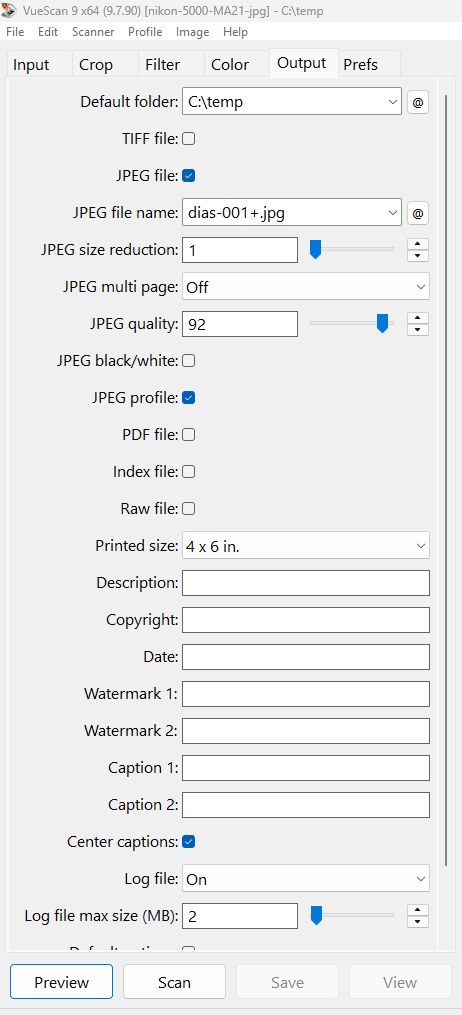
Printed size: This setting does not really matter for scanning to file, when you set the dpi manually on the input tab (as here). However it can influence cropping if you use the setting “Crop”, “Lock Aspect Ratio = Image Size”, so it is good to keep a value of same proportion as the slides.
JPEG File name: Choose “slide-001+.jpg” or whatever you like, the plus sign means that the pictures are autonumbered starting with “001”. Remember that if you delete pictures during scanning it will fill out the “empty” number before going on.
JPEG quality: 90 is good for 4000 dpi or the files will be very big (No visible difference), 100 is good for 2900 dpi.
Prefs Tab
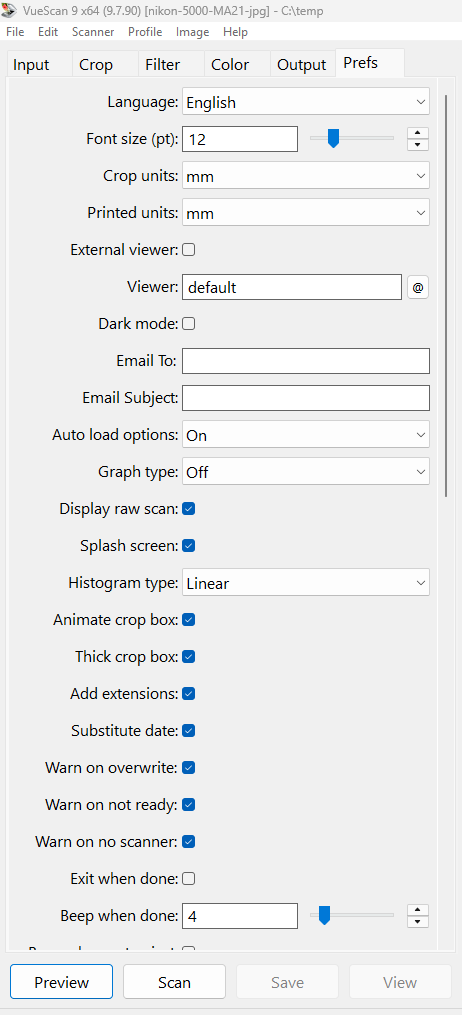
External viewer = Off, if not the picture will pop up in Windows every time you scan.
Beep when done: Choose “4” if you want the computer to beep 4 times when scanning is finished.
Vuescan slide scanning tips
Save your setting by choosing “File”, “Save options”.
Release memory: Choose “Image”, “Release Memory”
When you have scanned a picture and it is still on the screen you can make adjustments and press “save” to save an extra copy without scanning again.
Preparing your slides for scanning
Some old slides in “glass” frames can have accumulated layer of “grease” on the surface. Clean them with a fiber cloth. Sometimes it is also on the inside. You will then have
better results if you mount them in glass-less frames.
Scanning workflow – getting the right colors
The idea is to obtain an image with fairly correct colors already during the scan. Post-processing will then primarily consist of lightening images that are too dark.
Many old slides have a color cast, it can be purple (typical for Agfa) or blue or red. The “restore fading” algorithm makes changes to the picture that is difficult to do in post processing. It is not just a simple white balance. When you have scanned a picture and it is still on the screen you can try with or without “Restore fading” and press “save” to save two different copies. Decide along the way when you scan if “restore fading” is needed. Use it only if real improvement, it can also make the pictures look unnatural.
Some slides get darker over the years. You can correct them in post processing using software to lighten only the dark areas (lowlights). Like in AcDSee (Edit tab, Exposure, Fill light). Do not use a simple exposure setting.
“Autolevels” and “White Balance” can also improve some pictures.
Tip: Do not overprocess your pictures with too much sharpness, or saturation or “AI” improvement. The best is to keep the original analog look.
Advanced Vuescan settings
Adjusting color temperature
The scanner scans by illuminating the image alternately with a red, white and blue LED. This gives a color temperature of 6000K, which is similar to daylight. This usually works fine. If you have images that have consistently turned a little blue over the years, you can adjust the color temperature and thereby get some “warmer” colors. Correcting the color balance afterwards will not give the same result. Check the colors on a TV screen that is better at displaying colors.
1. Select the “Filter” tab, “restore fading” = off
The effect is best seen when you do not use “restore fading” but can also be combined with “restore fading”
2. Select the “Color” tab and adjust the brightness fields as indicated. 5000K is a good starting point.
4000K RGB (255, 209, 163) Brightness = 1.24 Brightness red = 1 Brightness green = 0.82 Brightness blue = 0.64
4500K (RGB 255,219,186) Brightness = 1.18 Brightness red = 1 Brightness green = 0.86 Brightness blue = 0.73
5000K (RGB 255, 228, 206) Brightness = 1.12 Brightness red = 1 Brightness green = 0.89 Brightness blue = 0.81
5500K (RGB 255, 236, 224) Brightness = 1.06 Brightness red = 1 Brightness green = 0.93 Brightness blue = 0.88
Scanning other formats than 24x36mm
Choose Crop Tab, Crop size = manual
For 24x24mm x= 22.549, y = 22.549, Lock aspect ratio = manual, Aspect Ratio = 1
For 28x28mm x = 25.057 (maximum) Y=26.067, lock aspect ratio = manual, Aspect Ratio 1.04
“Auto offset = on”
For a faster and more accurate result you can make preview area smaller. Or you can just leave it as “default”.
Preview area = “manual”, (the example shown is for 24×24 mm ).
Border (%) = -0,8
Preview X offset = 0
Preview Y offset = 4.8
Preview X size = 25.057 (maximum)
Preview Y Size = 26.435
Preview X Offset = 12.5
Focus Y Offset = 18.8
These are approx. values use up and down arrow to adjust
Scanning Kodachrome with Nikon Coolscan
The infrared dust removal can perceive dark areas and spots on Kodachrome film as dust and will therefore incorrectly try to correct this, making dark parts a little more gray. If the images are in glass frames, the advantage of dust removal will usually outweigh the disadvantage. However, if the images are in glassless frames, you can choose to manually blow them clean of dust and scan without infrared dust removal. Select the Filter tab, Infrared Cleaning = “None”. This does not apply to all Kodachromes, if necessary, do a test scan with and without “Infrared Cleaning”.
Read more about Vuescan here
http://www.hamrick.com/vuescan/html/vuesc.htm
(c) DataNord ApS 2026